Connect to a reader in a Hyper-V virtual machine via RDP
Microsoft Hyper-V supports the pass-through of USB devices including our readers using RemoteFX USB device redirection.
To make a reader available in a Hyper-V virtual machine:
- Shut down the virtual machine (VM).
Its state in Hyper-V Manager must be Off. - To access readers via USB-HID or virtual COM port, configure group policies for the RDP client.
- Start the VM in Hyper-V Manager.
-
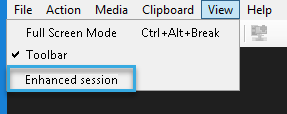
In the View menu, enable Enhanced session.
-
Open a Command Prompt as an administrator.
-
Run the following command, replacing
VM namewith the VM's name as shown in Hyper-V Manager:vmconnect.exe localhost "VM name" /edit -
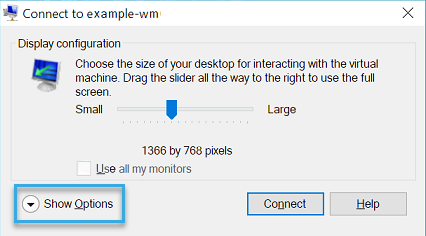
In the dialog that opens, click Show Options.
-
In the Local Resources tab, click More....

-
Select Other supported RemoteFX USB devices.
-
Below, select the reader and click OK.

The reader is now available in the VM.