Troubleshooting card read results
The reader won't respond to project cards
Details
Issue 1
The reader's RFID interface might not be configured at all. Then the reader's
Autoread mode is disabled, i.e. the reader doesn't
autonomously scan for cards.
Solution 1
Create a configuration with an Autoread component. The easiest way to do this
is Autoread Wizard.
Issue 2
The reader's RFID interface might not be configured for that card type.
This means that the configuration contains an Autoread component, but
not for the required card type.
Solution 2
Add an Autoread component
for the required card type to the configuration.
Issue 2
The reader may not be compatible with this card type. For example, you may be
using a 125 kHz card, while the reader only supports 13.56 MHz cards.
Solution 2
Check which frequencies the reader supports.
Issue 3
The card uses random IDs instead of a fixed UID value, i.e., it transmits a different fake (and thus unusable) UID
every time the card is read. Random IDs prevent the association of cards to specific users, so are suppressed by the reader to avoid nuisance workflows.
Solution 3
To verify this issue, read the card's UID twice and compare the numbers.
In case of random IDs, you'll need an encryption key to read the real UID. To enter the key, select Card Returns Random ID
in your Autoread component.
Issue 4
You try to read HID Prox, Indala, or Keri cards with a reader that
doesn't have a Prox license
(learn more).
Solution 4
Order a BALTECH LicenseCard to equip
the reader with a license.
Issue 5
You try to read HID Prox, Indala, or Keri cards with a reader that has the
wrong Prox license type. For readers purchased between 1 June 2020 and 1 February 2025, a discounted Prox license SE
was available for readers with an HID iCLASS SE Processor. However, if no HID iCLASS SE Processor is inserted in such a
reader, it cannot read the cards.
Solution 5
Insert an HID iCLASS SE Processor (also known as "iCLASS SAM") into the reader to use
the existing license, or equip the reader with a standard license. To do
so, you can use a BALTECH LicenseCard.
Issue 6
You try to read HID Prox, Indala, or Keri cards with an ACCESS200
reader that is configured for Wiegand. In this case, the reader cannot
read the project cards, even if it has a Prox license.
Solution 6
Update the reader firmware to 1100 v2.05.00 or above.
Issue 7
There may be general issue with the reader hardware or firmware.
Solution 7
See these entries.
The print-management reader responds to project cards, but the MFP doesn't
Details
The print-management reader beeps or its LED blinks in response to card presentations, but there is no response from
the MFP client.
Issue 1
The MFP client requires the reader to operate in keyboard emulation mode.
Solution 1
For details, see Configure print-management readers for keyboard emulation.
Issue 2
Some MFP clients work only with specific USB ports.
Solution 2
Consult the client documentation to ensure the reader is connected to the proper USB port.
Details
Issue
The RFID interface components may be processed in the wrong order. If a configuration
contains multiple RFID interface components (as in your case for UID and PCN), the
reader processes them from top to bottom for every card - and it stops as
soon as it gets the first result. If the UID component is processed
first, it will always produce a result (as every card has a UID), and so the
PCN component will never be used.
Solution
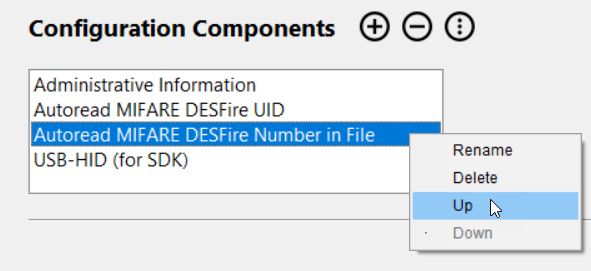
Change the order of RFID interface components in your configuration, so that the PCN
component comes first in the list.
- Open the configuration in BALTECH ConfigEditor.
- At the top of the window, right click a component and use the Up
and Down options to change the order.
The UID is returned differently than by certain non-BALTECH readers
Details
Issue
BALTECH readers rotate UIDs of ISO 14443 Type A cards bytewise by default,
i.e. the first byte is swapped with last, the second byte with the second-last, etc.
Certain non-BALTECH readers don't do this, so their output may differ.
Solution
Create a configuration containing an Autoread UID component for your card
type and enable the checkbox Rotate Bytewise. This will swap the bytes back
to create compatibility with the non-BALTECH readers concerned.
Using Autoread HID Prox Number in ConfigEditor doesn't return the printed card number of my HID Prox card
Details
Issue
The Autoread HID Prox Number component in ConfigEditor covers the most common HID Prox formats. However, there are many
more in the field. If your card uses such a less common format, the component won't provide the printed card number as expected.
Solution
Order a custom configuration. As a basis, please provide us the card's raw data stream.
To obtain the raw data stream:
- Open the latest version of BALTECH ConfigEditor.
Download it here as part of BALTECH ToolSuite.
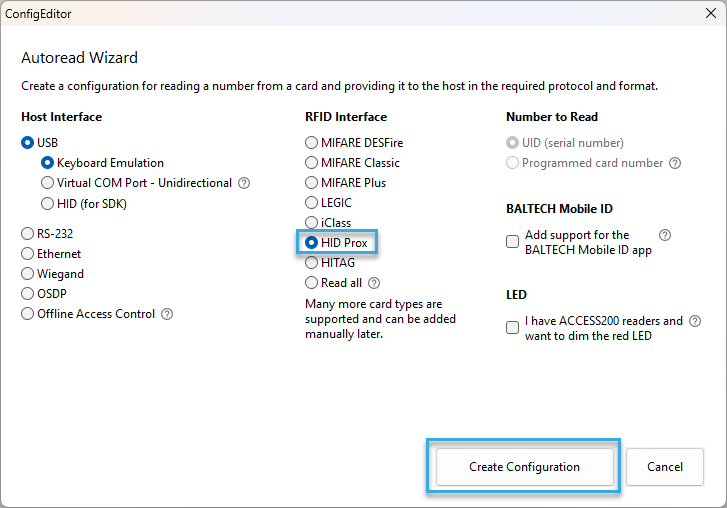
- Click Start Autoread Wizard.
- In the RFID Interface section, select HID Prox. The other settings don't matter.
-
Click Create Configuration.
-
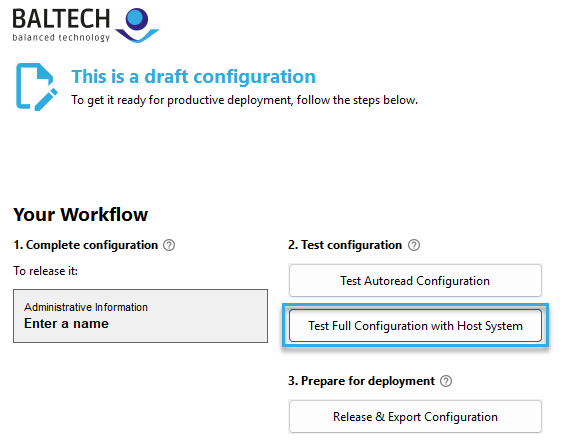
Connect a test reader and click Test Full Configuration with Host System.
Select a suitable option to deploy the configuration to the test reader.
-
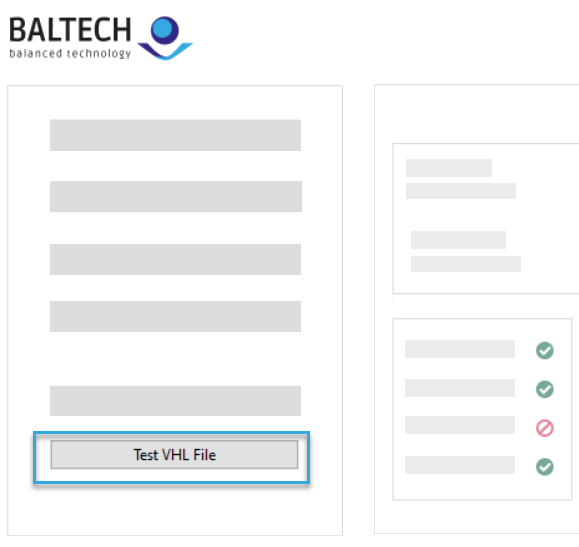
Open BALTECH ID-engine Explorer (also part of BALTECH ToolSuite).
-
Click Test VHL File.
-
Present a test card to the reader.
- Click Select Card (Reselect = True).
-
In the Number of Bytes field, enter 16 and click Read.
If you get an error, change Number of Bytes to 8 and click Read again.
The raw data stream is shown on the right.
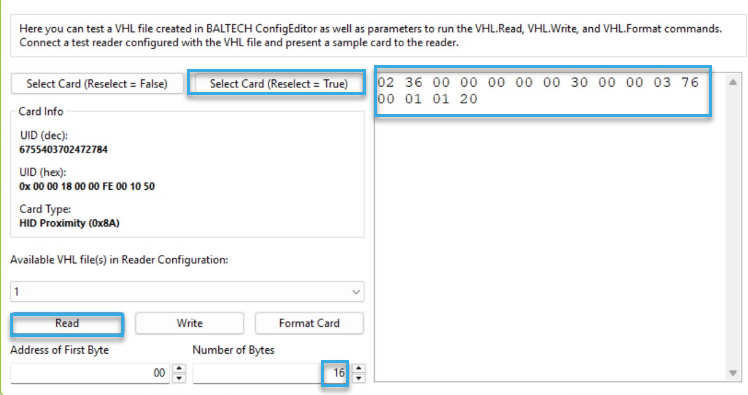
Send us the raw data stream together with the printed card number.
If possible, provide these values for several test cards.
Autoread works in ID-engine Explorer, but not in my test application
Details
Issue
When you switch from BALTECH ID-engine Explorer to your test application,
Autoread mode is automatically disabled on the test reader.
Solution
Disconnect the reader from your computer when you're done in ID-engine Explorer,
and then reconnect the reader to start testing in your test application.