Connect to an HID or virtual COM port reader via RDP
When connecting via RDP to a reader configured for HID or virtual COM port, the reader won't be listed on the RDP server by default. First, you need to edit the group policies for USB redirection on both the RDP server and the client.
Edit RDP client group policies
- On the RDP client, open Group Policy Editor.
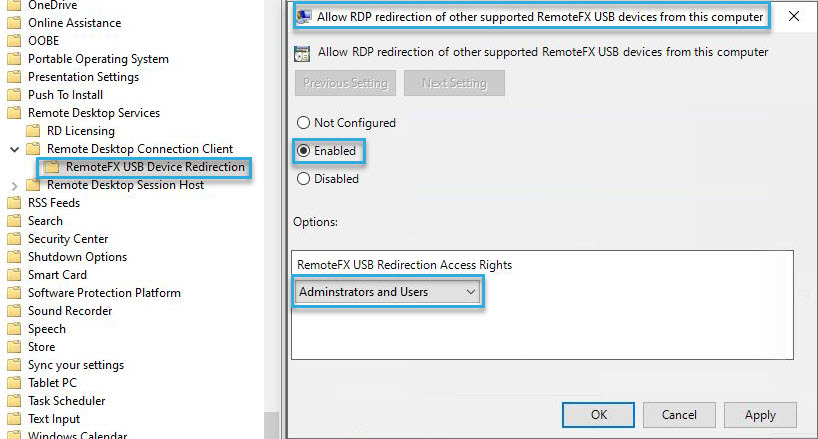
To do so, type gpedit into the Windows search box. - Go to Computer Configuration > Administrative Templates > Windows Components > Remote Desktop Services > Remote Desktop Connection Client > RemoteFX USB Device Redirection.
- Open Allow RDP redirection of other supported RemoteFX USB devices from this computer and set it to Enabled.
-
In the drop-down, select Administrators and Users.
-
Open Command Prompt.
To do so, type cmd into the Windows search box. - In Command Prompt, type
gpupdate /forceto update the group policies. -
Reboot the client computer.
This reboot is needed so your changes take effect.
Edit RDP server group policies
- On the RDP server, open Group Policy Editor.
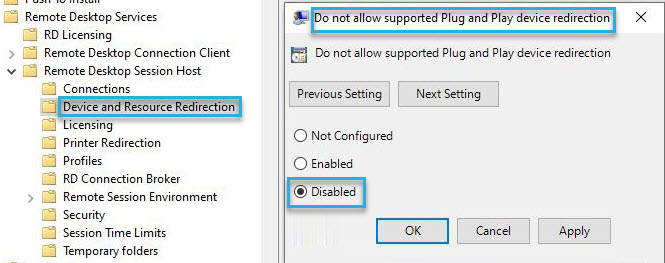
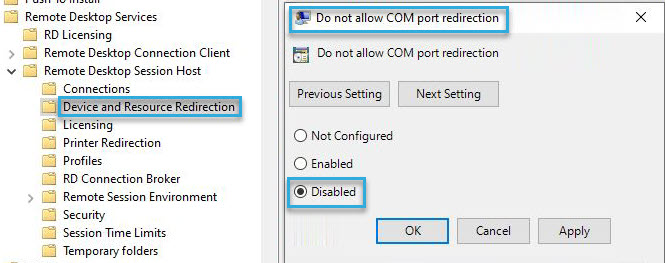
To do so, type gpedit into the Windows search box. - Go to Computer Configuration > Administrative Templates > Windows Components > Remote Desktop Services > Remote Desktop Session Host > Device and Resource Redirection.
-
Open Do not allow supported Plug and Play device redirection and set it to Disabled.
-
Open Do not allow COM port redirection and set it to Disabled.
-
Open Command Prompt.
To do so, type cmd into the Windows search box. - In Command Prompt, type
gpupdate /forceto update the group policies. -
Reboot the host computer.
This reboot is needed so your changes take effect.
Establish RDP connection
- Plug the reader into the RDP client.
- Open Remote Desktop Connection and click Show Options.
- In the Local Resources tab, under Local Devices and Resources, click More....
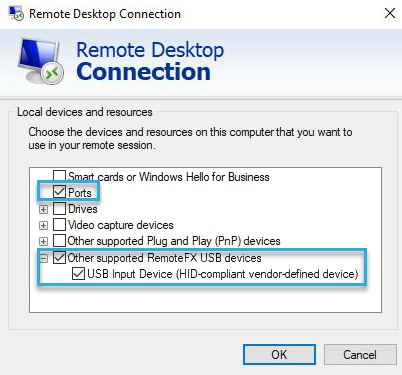
- Select Ports.
- Select Other Supported RemoteFX USB Devices; then select your reader.
- Click Connect.
The reader is now listed as a serial device on the RDP server.