Card structure of a MIFARE Classic card
Overview
- A MIFARE Classic card memory consists of several sectors, that are associated with applications, e.g. for access control, cafeteria payment, etc.
- Each sector contains several blocks and a sector trailer with keys and access conditions.
- To access data on the card you'll basically need to know:
- In which application/sector is the relevant data stored?
- In which block within the sector is the data stored?
- How to decrypt the block?
- What's the location of the data within the block?
- In what format is the data encoded?
Mapping to configuration values
Below, the card structure is illustrated in more detail. Move your mouse over a question mark to get details about each element and how it corresponds to the values in the configuration components Autoread MIFARE Classic Number in Sector and MIFARE Classic VHL File in BALTECH ConfigEditor.
Many MIFARE Classic cards contain a MAD (MIFARE Application Directory) that maps card sectors to applications.
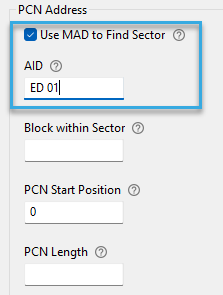
If your card contains a MAD, check the box Use MAD to Find Sector and enter the AID (application ID) in hexa-decimal encoding and most significant byte first (MSB first).
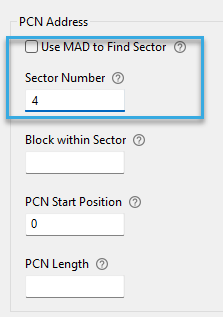
If your card doesn't contain a MAD, you can reference the sector also by its unique sector number, starting at 0.
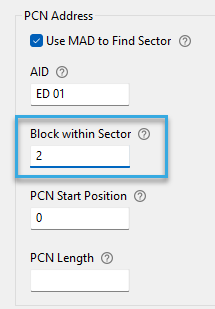
Each sector contains 4 blocks (On 4k cards, sectors 32 to 39 contain 16 blocks). All blocks but the last one contain data. Each block has a unique number, starting at 0.
Exception: Sector 0 contains 2 blocks, both of which contains data. Numbering starts at 1.
Enter the number of the block that contains the programmed card number (PCN).
Note: You can only reference data blocks. Sector trailers can never be accessed.
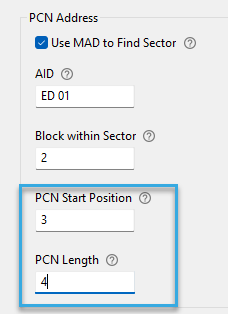
Block content is organized in bytes. To indicate the position of the programmed card number (PCN) within the block, specify the following:
- PCN start position, i.e. the number of the byte in which the PCN starts. The byte number is unique within the block, starting at 0.
- PCN length, i.e. how many bytes the PCN consists of.
The last block of the sector - the sector trailer - contains 2 keys: type A and type B. Specify the key type required for read access to the relevant sector.
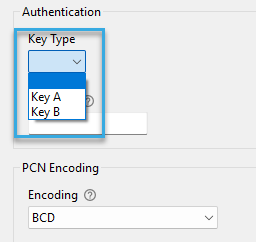
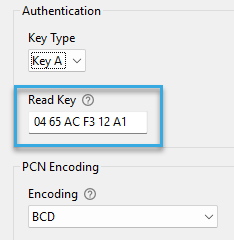
Enter the read key specified above (type A or B) in cleartext.
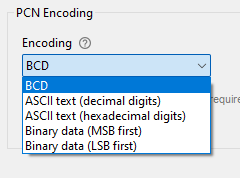
Data format in which the programmed card number (PCN) is encoded on the card. It tells the reader how to interprete the data on the card, so the correct number is transmitted to your host system.
Download request form
Send the following form to your card issuer to request the card structure details needed for reading a programmed card number (PCN) from your MIFARE Classic cards.
Many MIFARE Classic cards contain a MAD (MIFARE Application Directory) that maps card sectors to applications.
If your card contains a MAD, check the box Use MAD to Find Sector and enter the AID (application ID) in hexa-decimal encoding and most significant byte first (MSB first).
If your card doesn't contain a MAD, you can reference the sectors directly:
- In the First Sector Number field, enter the unique number of the first sector, starting at 0.
- In the Number of Sectors field, specify how many consecutive sectors to access.
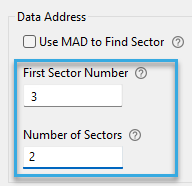
The start position and length of the relevant data within sectors must later be defined in the VHL.Read or VHL.Write command.
Bytes are numbered consecutively across sectors. Sector trailers cannot be accessed and must be excluded from the count.
The last block of each sector - the sector trailer - contains 2 keys: type A and type B.
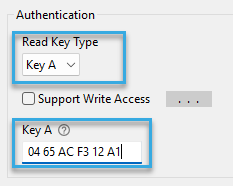
- In the Read Key Type dropdown, specify the key type required for read access to the relevant sectors.
- In the entry field below, enter the key in cleartext.
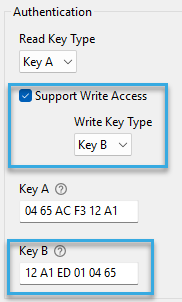
If you also want to write to the card, enable Support Write Access.
- In the Write Key Type dropdown, specify the key type required for write access to the relevant sectors.
- If this key is different from the read key, enter the key in cleartext in the field below.
Analyze card structure yourself
If it's not feasible for you to request the card structure details from your card issuer, you can analyze the card structure yourself using BALTECH ID-engine Explorer.