Give users access across multiple projects
Every Mobile ID user can only be a member in 1 Mobile ID project. However, you can still grant users access across multiple projects. To do so, you can add keys from several projects to a reader's configuration.
Example 1: Main entrance of a multi-tenant building
An office building accommodates multiple tenants. Each tenant has their separate area, but all tenants need access to the main entrance.
- Create a Mobile ID project for each tenant.
- Create a configuration for each tenant and enter the Mobile ID key of that tenant.
- Create a configuration for the main entrance and enter the Mobile ID keys of all tenants — for example, if you have tenant 1, 2, and 3, enter all 3 keys.
Example 2: External users needing access to multiple buildings
External users, e.g. handymen or garbage collectors, need access to the main entrance of multiple office buildings with different tenants.
- Create a Mobile ID project for each tenant.
- Create a Mobile ID project for the external users.
- Create a configuration for each tenant's readers and enter the Mobile ID key of that tenant.
- For each building's main entrance, create a configuration and enter the Mobile ID keys of that building's tenants and the external users — for example, building A's main entrance gets building A's tenant keys and the external users' key.
Enter multiple keys in a Mobile ID configuration
-
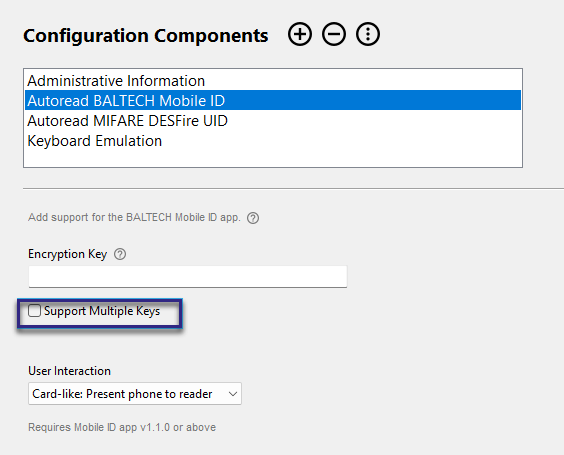
In your configuration, enable Support Multiple Keys.
-
Click
 .
. -
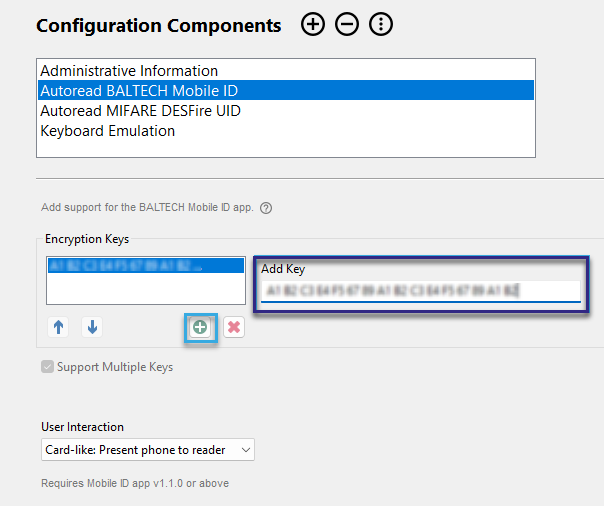
In the Add Key field, enter the first key.
Where do I find that key exactly?
-
Log in to your admin account in Mobile ID Manager.
-
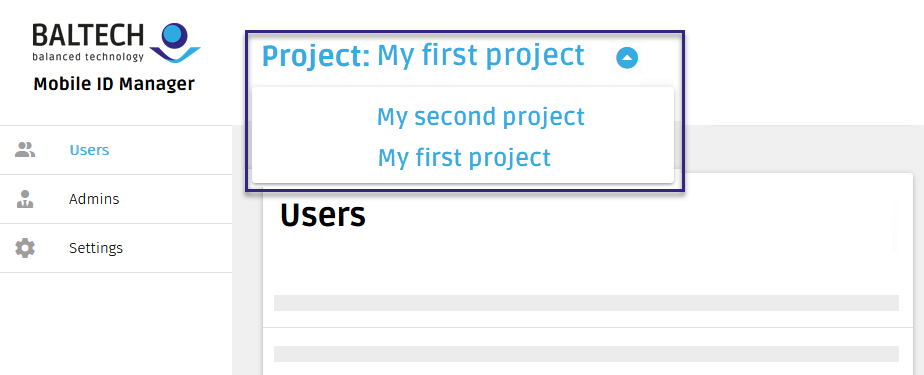
If you have multiple projects, make sure the desired one is open.
How do I switch projects?
Click the arrow next to the project name at the top.
-
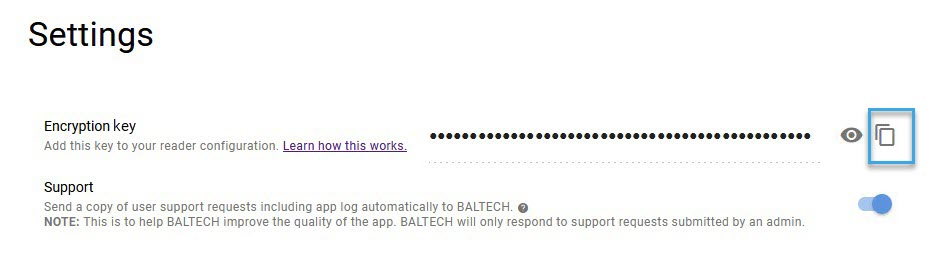
Go to Settings.
-
Copy the Encryption key to the clipboard.
-
-
Click
again to add another key.